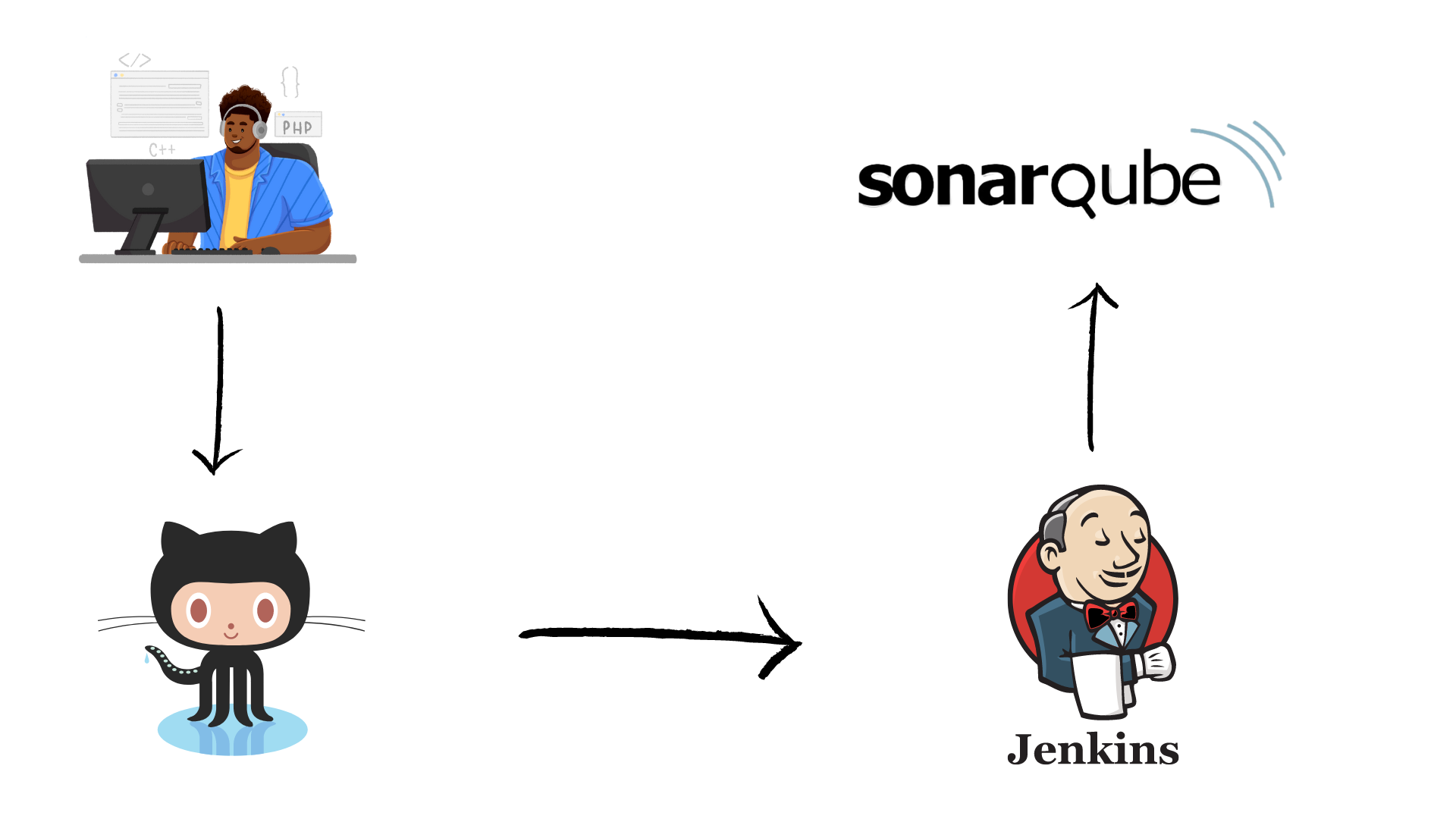
Setting up a complete CI/CD pipeline with Jenkins and SonarQube is essential for maintaining code quality and automating your build process. In this comprehensive guide, we'll walk through the entire setup using Docker Compose, from installation to automated GitHub webhooks.
Step 1: Docker Compose Setup
First, we'll set up Jenkins, SonarQube, and PostgreSQL using Docker Compose. This configuration ensures all services work together seamlessly.
version: '3.8'

services:
  jenkins:
    image: jenkins/jenkins:lts-jdk17
    container_name: jenkins
    user: root
    ports:
      - "8080:8080"
      - "50000:50000"
    volumes:
      - jenkins_home:/var/jenkins_home
      - /var/run/docker.sock:/var/run/docker.sock
    environment:
      JAVA_OPTS: "-Djenkins.install.runSetupWizard=false"
    depends_on:
      - sonarqube

  sonarqube:
    image: sonarqube:community
    container_name: sonarqube
    ports:
      - "9000:9000"
    environment:
      SONAR_ES_BOOTSTRAP_CHECKS_DISABLE: "true"
      SONAR_JDBC_URL: jdbc:postgresql://db:5432/sonar
      SONAR_JDBC_USERNAME: sonar
      SONAR_JDBC_PASSWORD: sonar
    depends_on:
      - db

  db:
    image: postgres:15
    container_name: sonarqube_db
    environment:
      POSTGRES_USER: sonar
      POSTGRES_PASSWORD: sonar
      POSTGRES_DB: sonar
    volumes:
      - db_data:/var/lib/postgresql/data

volumes:
  jenkins_home:
  db_data:
Start the services with:
docker-compose up -dAccess Jenkins at http://localhost:8080 and SonarQube at http://localhost:9000
Step 2: Install Jenkins Plugins
Navigate to Settings → Plugins in Jenkins and install the following essential plugins:
- Maven Integration Plugin
- Pipeline
- Pipeline: Groovy
- Pipeline: GitHub
- SonarQube Plugin
- SonarQube Scanner
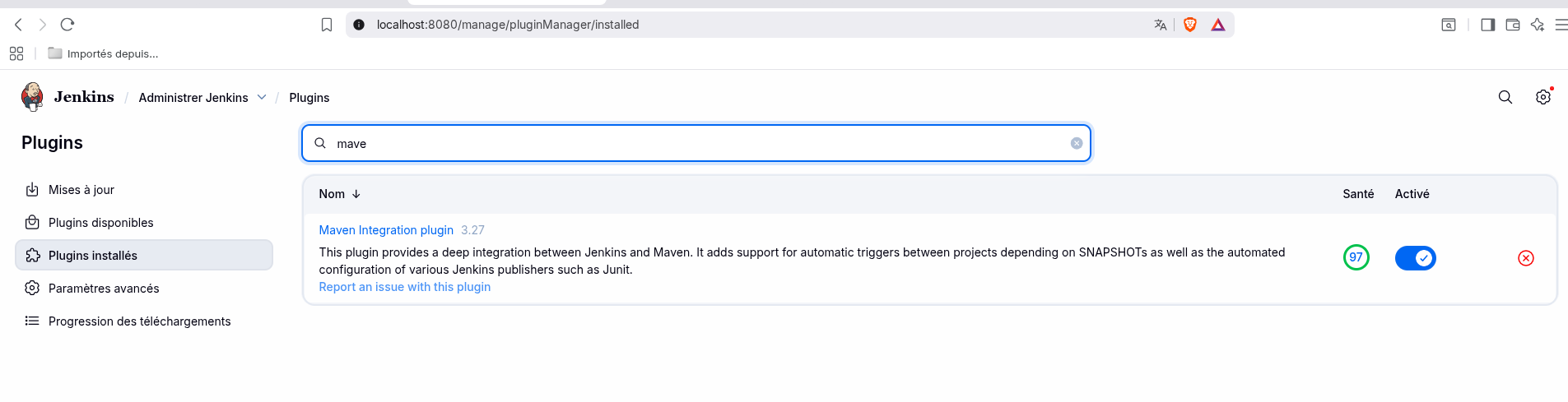
Jenkins plugins installation screen
Step 3: Configure Tools in Jenkins
Maven Configuration
Go to Settings → Tools and add Maven:
- Name:
Maven - Version: 3.9.2 (automatic installation)
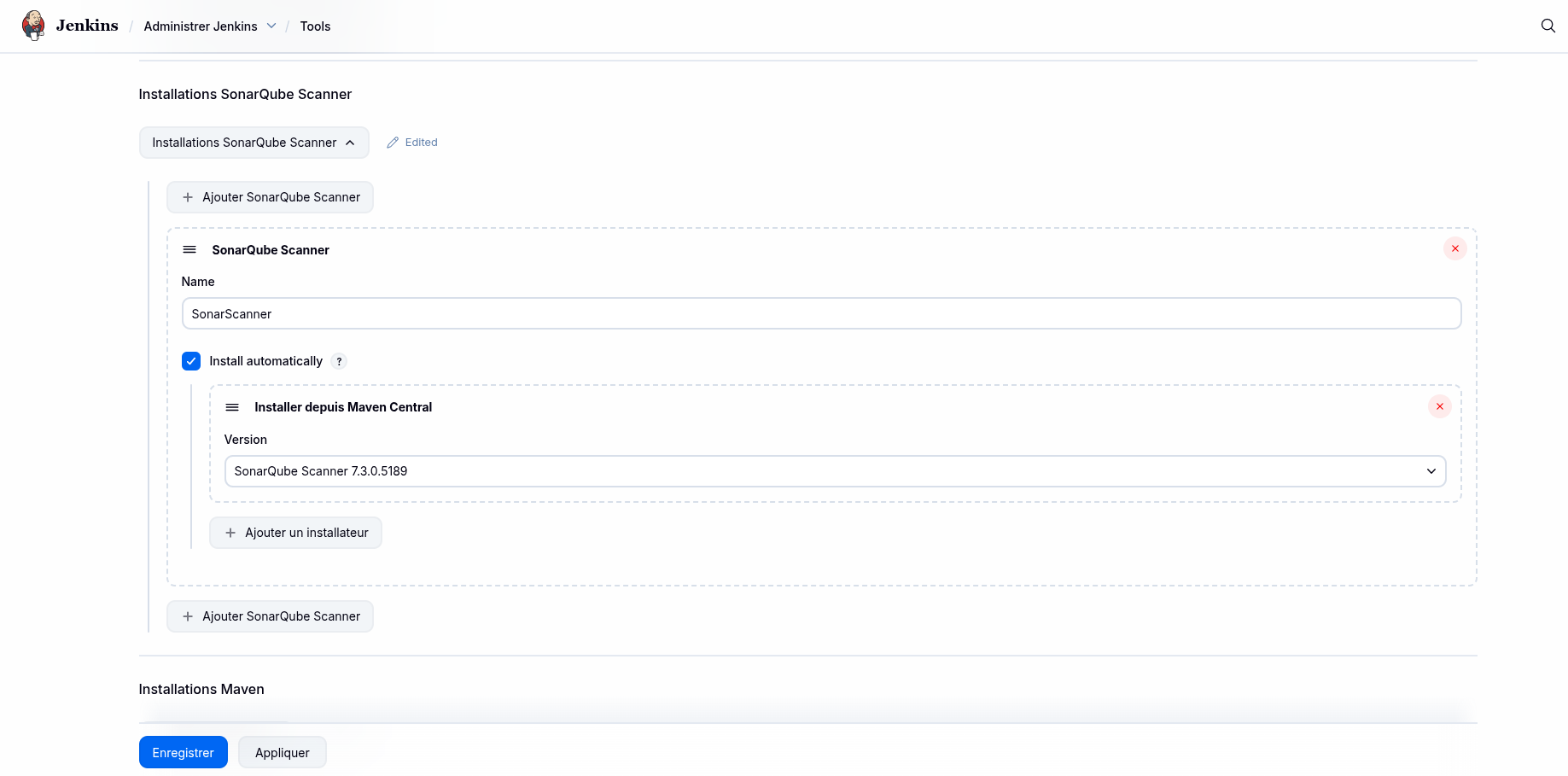
Maven tool configuration
SonarQube Scanner Configuration
In the same Tools section, add SonarQube Scanner with automatic installation.

SonarQube Scanner setup
Step 4: Configure SonarQube Token
First, generate a token in SonarQube (My Account → Security → Generate Token). Then add it to Jenkins:
- Go to Settings → Credentials → Global
- Click Add Credentials
- Select Secret text as type
- Paste your SonarQube token
- ID:
sonar
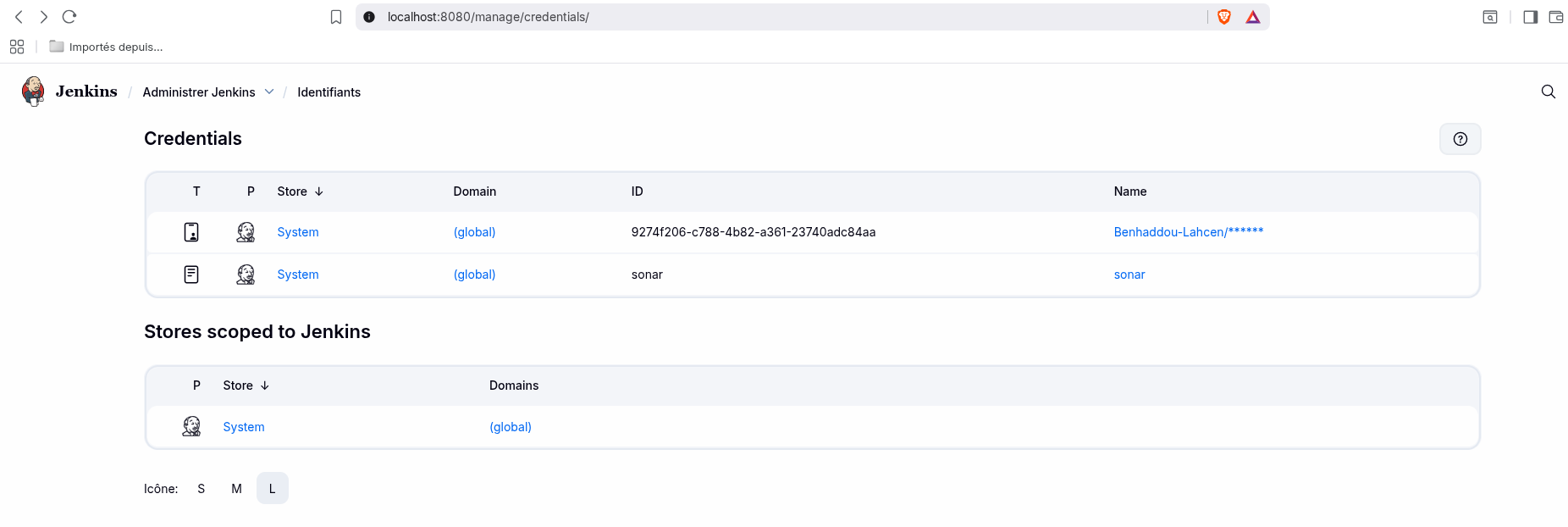
Adding SonarQube credentials
Step 5: Configure SonarQube Server
Navigate to Settings → System → SonarQube servers and add:
- Name: SonarQube
- Server URL: http://localhost:9000
- Authentication token: Select the credential you created (sonar)
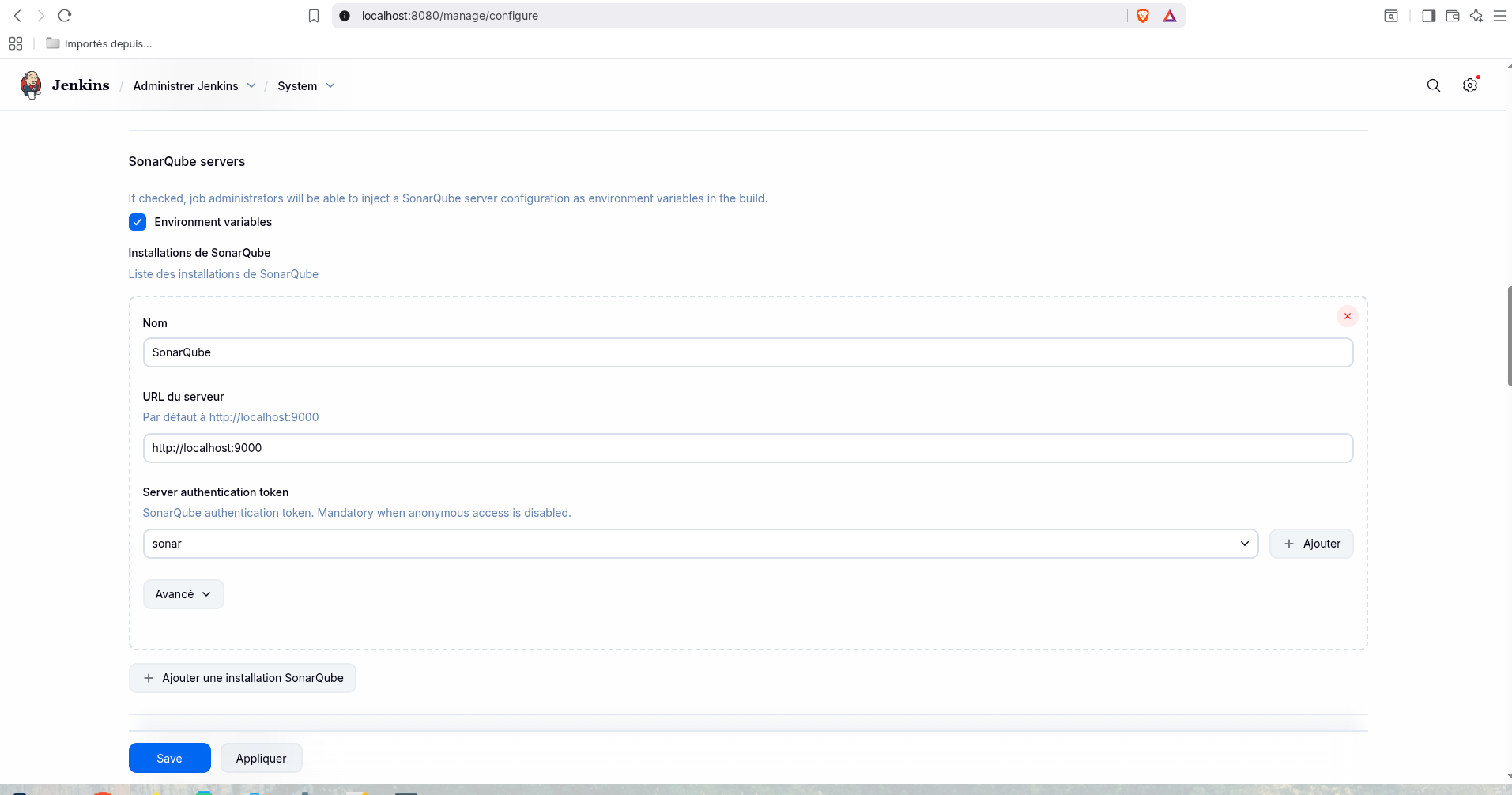
SonarQube server setup in Jenkins
Step 6: Configure GitHub Credentials
To allow Jenkins to clone your repository, add GitHub credentials:
- Go to Settings → Credentials → Global
- Click Add Credentials
- Type: Username with password
- Username: Your GitHub username
- Password: Personal Access Token (generate from GitHub Settings → Developer settings → Personal access tokens)
- ID:
github-credentials
Step 7: Create Pipeline Job
Create New Pipeline
- Click New Item
- Enter a name for your pipeline
- Select Pipeline
- Click OK
Configure Pipeline from SCM
In the pipeline configuration:
- Definition: Pipeline script from SCM
- SCM: Git
- Repository URL: Your GitHub repository URL
- Credentials: Select your GitHub credentials
- Branch: */main (or your branch name)
- Script Path: Jenkinsfile
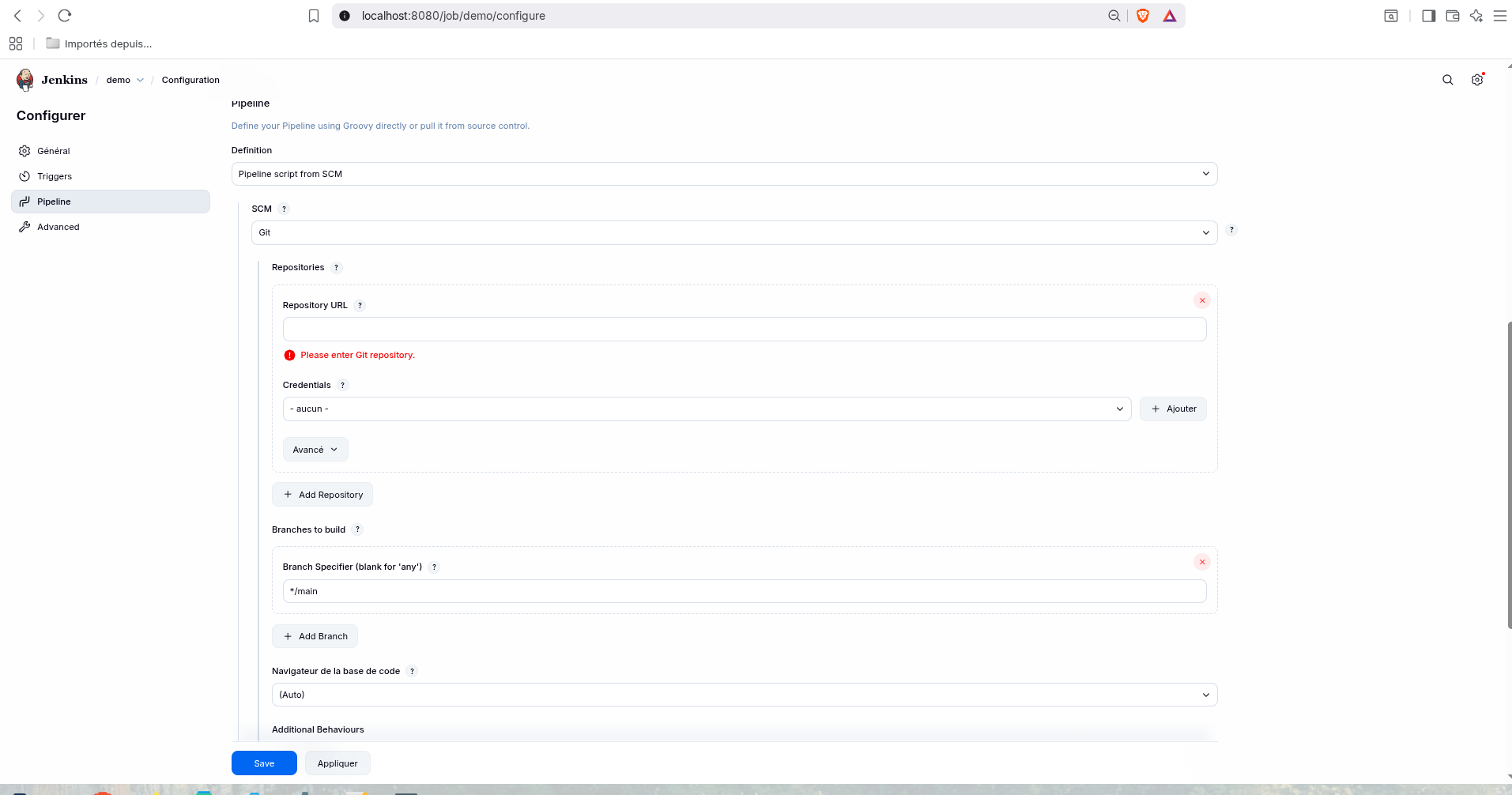
Pipeline SCM configuration
Step 8: Configure GitHub Webhook (Optional)
For automatic pipeline triggers on every push:
Expose Jenkins (if on localhost)
Use ngrok or Cloudflare Tunnel to expose Jenkins:
ngrok http 8080Add Webhook in GitHub
- Go to your GitHub repository
- Settings → Webhooks → Add webhook
- Payload URL:
http://your-jenkins-url/github-webhook/ - Content type: application/json
- Events: Just the push event
- Click Add webhook
Step 9: Create Jenkinsfile
Create a Jenkinsfile in your repository root with the following pipeline definition:
pipeline {
    agent any

    environment {
        SONAR_HOST_URL = 'http://localhost:9000'
        SONAR_TOKEN = credentials('sonar')
    }

    stages {

        stage('Stage 1: Build') {
            steps {
                echo 'Building the project...'
                sh "${tool 'Maven'}/bin/mvn clean compile"
            }
        }

        stage('Stage 2: SonarQube Analysis') {
            steps {
                script {
                    withSonarQubeEnv('SonarQube') {
                        sh """
                            ${tool 'Maven'}/bin/mvn sonar:sonar \
                            -Dsonar.projectKey=sonarQube \
                            -Dsonar.host.url=$SONAR_HOST_URL \
                            -Dsonar.login=$SONAR_TOKEN
                        """
                    }
                }
            }
        }
    }

    post {
        always {
            echo "Pipeline finished!"
        }
        success {
            echo "Pipeline executed successfully!"
        }
        failure {
            echo "Pipeline failed!"
        }
    }
}
Pipeline Stages Explained
- Stage 1: Build - Compiles the project using Maven
- Stage 2: SonarQube Analysis - Runs code quality analysis
- Post actions - Executes after pipeline completion
Step 10: Run the Pipeline
Now you can trigger the pipeline:
- Automatic: Push a commit to your repository
- Manual: Click "Build Now" in Jenkins
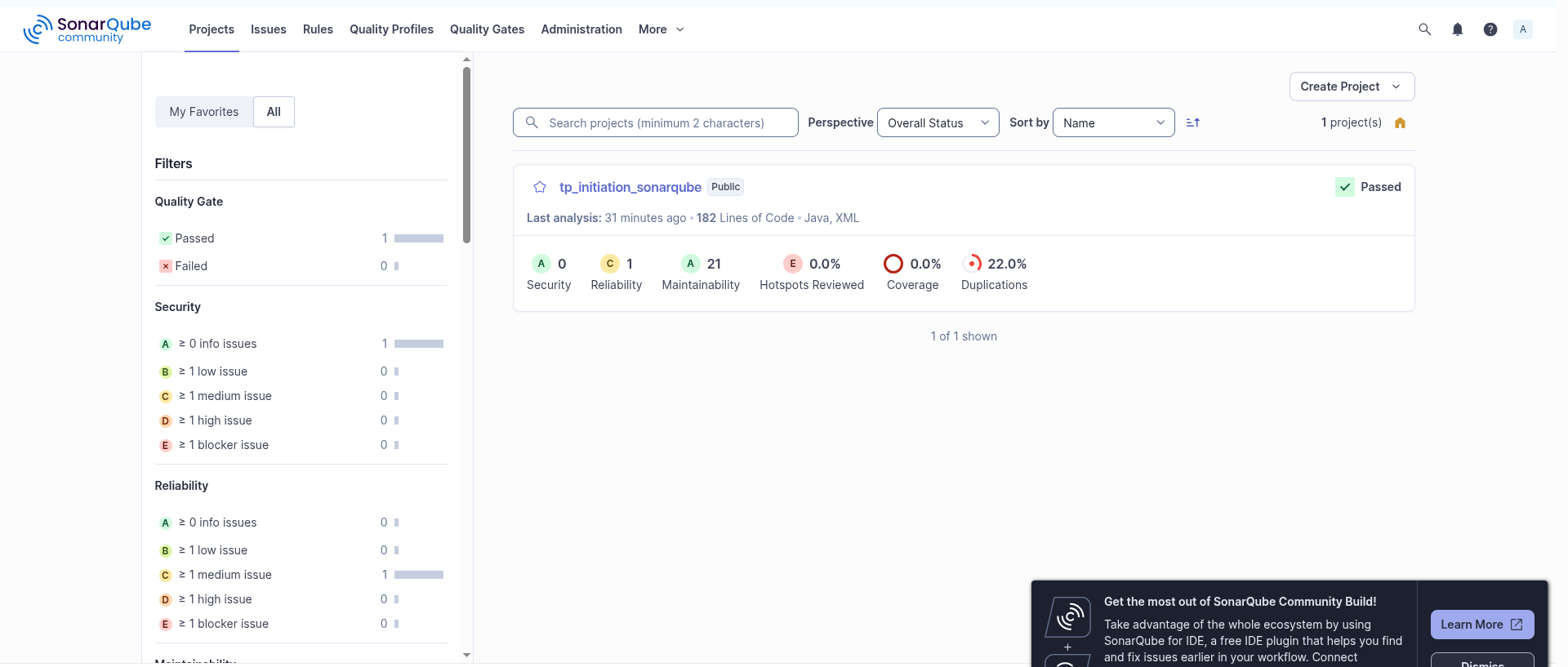
Pipeline execution in Jenkins
Step 11: View Results in SonarQube
After the pipeline completes, view the analysis results in SonarQube at http://localhost:9000
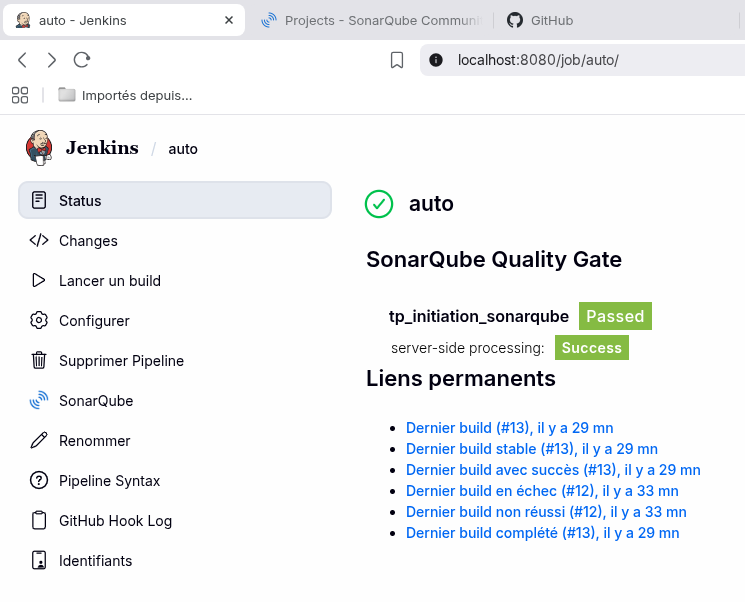
Code quality analysis results in SonarQube
Troubleshooting Common Issues
1. Maven not found
Make sure Maven is configured in Settings → Tools with the exact name "Maven".
2. SonarQube connection failed
Verify that:
- SonarQube container is running
- The URL in Jenkins matches your setup
- The token is valid and correctly stored
3. GitHub webhook not triggering
Check:
- Webhook URL is correct and accessible
- Recent deliveries in GitHub webhook settings
- Jenkins is properly exposed (if using ngrok/cloudflare)
Best Practices
- ✓ Use environment variables for sensitive data
- ✓ Set up quality gates in SonarQube
- ✓ Configure proper branch protection in GitHub
- ✓ Add email notifications on pipeline failure
- ✓ Regular backup of Jenkins configuration
- ✓ Use declarative pipeline syntax
Conclusion
You now have a fully functional CI/CD pipeline with Jenkins and SonarQube! This setup provides:
- ✓ Automated builds on every commit
- ✓ Continuous code quality analysis
- ✓ Early detection of code issues
- ✓ Improved team productivity
- ✓ Consistent code standards